$post_data = "username=username&password=pwd";
//$header_array[]="User-Agent:
$url = "http://wwwa.way2sms.com/auth.cl";
$cookie = tempnam ("/tmp", "CURLCOOKIE");
$ch = curl_init();
curl_setopt( $ch, CURLOPT_USERAGENT,"Mozilla/5.0 (Windows; U; Windows NT 6.0; en-US; rv:1.9.0.5) Gecko/2008120122 Firefox/3.0.5" );
curl_setopt( $ch, CURLOPT_URL, $url );
curl_setopt ($ch, CURLOPT_HTTPHEADER, Array("Content-Type: application/x-www-form-urlencoded","Accept: */*"));
curl_setopt($ch, CURLOPT_POST, true);
curl_setopt($ch, CURLOPT_POSTFIELDS, $post_data);
curl_setopt( $ch, CURLOPT_COOKIEJAR, $cookie );
curl_setopt( $ch, CURLOPT_FOLLOWLOCATION, true );
curl_setopt( $ch, CURLOPT_ENCODING, "" );
curl_setopt( $ch, CURLOPT_RETURNTRANSFER, true );
curl_setopt( $ch, CURLOPT_AUTOREFERER, true );
curl_setopt( $ch, CURLOPT_SSL_VERIFYPEER, false ); # required for https urls
curl_setopt( $ch, CURLOPT_CONNECTTIMEOUT, $timeout );
curl_setopt( $ch, CURLOPT_TIMEOUT, $timeout );
curl_setopt( $ch, CURLOPT_MAXREDIRS, 10 );
curl_setopt($ch,CURLOPT_REFERER,"http://wwwg.way2sms.com//entry.jsp");
$content = curl_exec( $ch );
$response = curl_getinfo( $ch );
$url = "http://wwwa.way2sms.com//jsp/InstantSMS.jsp?val=0";
curl_setopt( $ch, CURLOPT_USERAGENT,"Mozilla/5.0 (Windows; U; Windows NT 6.0; en-US; rv:1.9.0.5) Gecko/2008120122 Firefox/3.0.5" );
curl_setopt( $ch, CURLOPT_URL, $url );
curl_setopt($ch, CURLOPT_POST, false);
curl_setopt( $ch, CURLOPT_COOKIEJAR, $cookie );
curl_setopt( $ch, CURLOPT_FOLLOWLOCATION, true );
curl_setopt( $ch, CURLOPT_ENCODING, "" );
curl_setopt( $ch, CURLOPT_RETURNTRANSFER, true );
curl_setopt( $ch, CURLOPT_AUTOREFERER, true );
curl_setopt( $ch, CURLOPT_SSL_VERIFYPEER, false );
curl_setopt( $ch, CURLOPT_CONNECTTIMEOUT, $timeout );
curl_setopt( $ch, CURLOPT_TIMEOUT, $timeout );
curl_setopt( $ch, CURLOPT_MAXREDIRS, 0 );
$content = curl_exec( $ch );
$response = curl_getinfo( $ch );
//site content in the instant sms
$tmp = substr ($content,strrpos($content,"Action",0)+15,15);
//value of Action=custfromnnnn which will be different for each customer
$id = substr($tmp,0,strrpos($tmp,"\"",0));
$post_data = "custid=undefined&HiddenAction=instantsms&Action=$id&login=&pass=&MobNo=9986966496&textArea=test sms";
$url = "http://wwwa.way2sms.com/FirstServletsms?custid=";
curl_setopt( $ch, CURLOPT_USERAGENT,"Mozilla/5.0 (Windows; U; Windows NT 6.0; en-US; rv:1.9.0.5) Gecko/2008120122 Firefox/3.0.5" );
curl_setopt( $ch, CURLOPT_URL, $url );
curl_setopt ($ch, CURLOPT_HTTPHEADER, Array("Content-Type: application/x-www-form-urlencoded","Accept: */*"));
curl_setopt($ch, CURLOPT_POST, true);
curl_setopt($ch, CURLOPT_POSTFIELDS, $post_data);
curl_setopt( $ch, CURLOPT_COOKIEJAR, $cookie );
curl_setopt( $ch, CURLOPT_FOLLOWLOCATION, true );
curl_setopt( $ch, CURLOPT_ENCODING, "" );
curl_setopt( $ch, CURLOPT_RETURNTRANSFER, true );
curl_setopt( $ch, CURLOPT_AUTOREFERER, true );
curl_setopt( $ch, CURLOPT_SSL_VERIFYPEER, false ); # required for https urls
curl_setopt( $ch, CURLOPT_CONNECTTIMEOUT, $timeout );
curl_setopt( $ch, CURLOPT_TIMEOUT, $timeout );
curl_setopt( $ch, CURLOPT_MAXREDIRS, 0 );
$content = curl_exec( $ch );
$url = "http://wwwa.way2sms.com/jsp/logout.jsp";
curl_setopt( $ch, CURLOPT_USERAGENT,"Mozilla/5.0 (Windows; U; Windows NT 6.0; en-US; rv:1.9.0.5) Gecko/2008120122 Firefox/3.0.5" );
curl_setopt( $ch, CURLOPT_URL, $url );
curl_setopt ($ch, CURLOPT_HTTPHEADER, Array("Content-Type: application/x-www-form-urlencoded","Accept: */*"));
curl_setopt($ch, CURLOPT_POST, true);
curl_setopt($ch, CURLOPT_POSTFIELDS, $post_data);
curl_setopt( $ch, CURLOPT_COOKIEJAR, $cookie );
curl_setopt( $ch, CURLOPT_FOLLOWLOCATION, true );
curl_setopt( $ch, CURLOPT_ENCODING, "" );
curl_setopt( $ch, CURLOPT_RETURNTRANSFER, true );
curl_setopt( $ch, CURLOPT_AUTOREFERER, true );
curl_setopt( $ch, CURLOPT_SSL_VERIFYPEER, false ); # required for https urls
curl_setopt( $ch, CURLOPT_CONNECTTIMEOUT, $timeout );
curl_setopt( $ch, CURLOPT_TIMEOUT, $timeout );
curl_setopt( $ch, CURLOPT_MAXREDIRS, 0 );
$content = curl_exec( $ch );
//echo $content;
?>
Wednesday, March 3, 2010

Thursday, February 25, 2010
wkhtmltopdf
wkhtmltopdf is a command line tools that lets you to convert a HTML-document to a PDF-document with complete css support
http://code.google.com/p/wkhtmltopdf/
Guide
Try this commad
wkhtmltopdf www.myhomepage.com myhomepage.pdf
for a list of available options see
wkhtmltopdf --help
Features
* Convert web pages into PDF documents using webkit
* Adding headers and footers (static version only)
* TOC generation (static version only)
* Batch mode conversions
* (Linux) No longer requires an XServer to be running (however the X11 client libs must be installed)
http://code.google.com/p/wkhtmltopdf/
Guide
Try this commad
wkhtmltopdf www.myhomepage.com myhomepage.pdf
for a list of available options see
wkhtmltopdf --help
Features
* Convert web pages into PDF documents using webkit
* Adding headers and footers (static version only)
* TOC generation (static version only)
* Batch mode conversions
* (Linux) No longer requires an XServer to be running (however the X11 client libs must be installed)
Saturday, February 20, 2010
Way2SMS send sms C# Code
using System;
using System.Collections.Generic;
using System.Linq;
using System.Text;
using System.IO;
using System.Net;
namespace SMSAPI
{
class SmsSender
{
void send(string uid, string pwd, string no, string msg)
{
String content = "username="+uid+"&password="+pwd;
try
{
HttpWebRequest request = (HttpWebRequest)WebRequest.Create("http://wwwa.way2sms.com/auth.cl");
request.KeepAlive = false;
byte[] byteArray = Encoding.UTF8.GetBytes(content);
CookieContainer cookies = new CookieContainer();
request.CookieContainer = cookies;
request.UserAgent = "Mozilla/5.0 (Windows; U; Windows NT 6.0; en-US; rv:1.9.0.5) Gecko/2008120122 Firefox/3.0.5";
request.ContentLength = byteArray.Length;
request.ContentType = "application/x-www-form-urlencoded";
request.Accept = "*/*";
request.Referer = "http://wwwg.way2sms.com//entry.jsp";
request.Method = "POST";
Stream dataStream = request.GetRequestStream();
dataStream.Write(byteArray, 0, byteArray.Length);
dataStream.Close();
HttpWebResponse response = (HttpWebResponse)request.GetResponse();
foreach (Cookie cook in response.Cookies)
{
cookies.Add(cook);
}
Stream stream = response.GetResponseStream();
StreamReader reader = new StreamReader(stream);
string serverData = reader.ReadToEnd();
reader.Close();
content = "custid=undefined&HiddenAction=instantsms&Action=custfrom450000&login=&pass=&MobNo="+no+"&textArea="+msg;
request = (HttpWebRequest)WebRequest.Create("http://wwwa.way2sms.com/FirstServletsms?custid=");
byteArray = Encoding.UTF8.GetBytes(content);
request.UserAgent = "Mozilla/5.0 (Windows; U; Windows NT 6.0; en-US; rv:1.9.0.5) Gecko/2008120122 Firefox/3.0.5";
request.ContentLength = byteArray.Length;
request.ContentType = "application/x-www-form-urlencoded";
request.Accept = "*/*";
request.CookieContainer = cookies;
request.Method = "POST";
dataStream = request.GetRequestStream();
dataStream.Write(byteArray, 0, byteArray.Length);
dataStream.Close();
response = (HttpWebResponse)request.GetResponse();
stream = response.GetResponseStream();
reader = new StreamReader(stream);
serverData = reader.ReadToEnd();
reader.Close();
request = (HttpWebRequest)WebRequest.Create("http://wwwa.way2sms.com/jsp/logout.jsp");
byteArray = Encoding.UTF8.GetBytes(content);
request.UserAgent = "Mozilla/5.0 (Windows; U; Windows NT 6.0; en-US; rv:1.9.0.5) Gecko/2008120122 Firefox/3.0.5";
request.ContentLength = byteArray.Length;
request.ContentType = "application/x-www-form-urlencoded";
request.Accept = "*/*";
request.CookieContainer = cookies;
request.Method = "POST";
dataStream = request.GetRequestStream();
dataStream.Write(byteArray, 0, byteArray.Length);
dataStream.Close();
response = (HttpWebResponse)request.GetResponse();
stream = response.GetResponseStream();
reader = new StreamReader(stream);
serverData = reader.ReadToEnd();
reader.Close();
}
catch (ArgumentException e)
{
Console.WriteLine("arg exception");
Console.Read();
}
catch (WebException e)
{
Console.WriteLine("web exception");
Console.Read();
}
catch (Exception e)
{
Console.WriteLine("exception");
Console.Read();
}
}
static void Main(string[] args)
{
SmsSender sms = new SmsSender();
sms.send("username", "password", "phno_recipient", "message");
}
}
}
cochin IT solutions -web hosting web development cellphone applications business solutions seo services
using System.Collections.Generic;
using System.Linq;
using System.Text;
using System.IO;
using System.Net;
namespace SMSAPI
{
class SmsSender
{
void send(string uid, string pwd, string no, string msg)
{
String content = "username="+uid+"&password="+pwd;
try
{
HttpWebRequest request = (HttpWebRequest)WebRequest.Create("http://wwwa.way2sms.com/auth.cl");
request.KeepAlive = false;
byte[] byteArray = Encoding.UTF8.GetBytes(content);
CookieContainer cookies = new CookieContainer();
request.CookieContainer = cookies;
request.UserAgent = "Mozilla/5.0 (Windows; U; Windows NT 6.0; en-US; rv:1.9.0.5) Gecko/2008120122 Firefox/3.0.5";
request.ContentLength = byteArray.Length;
request.ContentType = "application/x-www-form-urlencoded";
request.Accept = "*/*";
request.Referer = "http://wwwg.way2sms.com//entry.jsp";
request.Method = "POST";
Stream dataStream = request.GetRequestStream();
dataStream.Write(byteArray, 0, byteArray.Length);
dataStream.Close();
HttpWebResponse response = (HttpWebResponse)request.GetResponse();
foreach (Cookie cook in response.Cookies)
{
cookies.Add(cook);
}
Stream stream = response.GetResponseStream();
StreamReader reader = new StreamReader(stream);
string serverData = reader.ReadToEnd();
reader.Close();
content = "custid=undefined&HiddenAction=instantsms&Action=custfrom450000&login=&pass=&MobNo="+no+"&textArea="+msg;
request = (HttpWebRequest)WebRequest.Create("http://wwwa.way2sms.com/FirstServletsms?custid=");
byteArray = Encoding.UTF8.GetBytes(content);
request.UserAgent = "Mozilla/5.0 (Windows; U; Windows NT 6.0; en-US; rv:1.9.0.5) Gecko/2008120122 Firefox/3.0.5";
request.ContentLength = byteArray.Length;
request.ContentType = "application/x-www-form-urlencoded";
request.Accept = "*/*";
request.CookieContainer = cookies;
request.Method = "POST";
dataStream = request.GetRequestStream();
dataStream.Write(byteArray, 0, byteArray.Length);
dataStream.Close();
response = (HttpWebResponse)request.GetResponse();
stream = response.GetResponseStream();
reader = new StreamReader(stream);
serverData = reader.ReadToEnd();
reader.Close();
request = (HttpWebRequest)WebRequest.Create("http://wwwa.way2sms.com/jsp/logout.jsp");
byteArray = Encoding.UTF8.GetBytes(content);
request.UserAgent = "Mozilla/5.0 (Windows; U; Windows NT 6.0; en-US; rv:1.9.0.5) Gecko/2008120122 Firefox/3.0.5";
request.ContentLength = byteArray.Length;
request.ContentType = "application/x-www-form-urlencoded";
request.Accept = "*/*";
request.CookieContainer = cookies;
request.Method = "POST";
dataStream = request.GetRequestStream();
dataStream.Write(byteArray, 0, byteArray.Length);
dataStream.Close();
response = (HttpWebResponse)request.GetResponse();
stream = response.GetResponseStream();
reader = new StreamReader(stream);
serverData = reader.ReadToEnd();
reader.Close();
}
catch (ArgumentException e)
{
Console.WriteLine("arg exception");
Console.Read();
}
catch (WebException e)
{
Console.WriteLine("web exception");
Console.Read();
}
catch (Exception e)
{
Console.WriteLine("exception");
Console.Read();
}
}
static void Main(string[] args)
{
SmsSender sms = new SmsSender();
sms.send("username", "password", "phno_recipient", "message");
}
}
}
cochin IT solutions -web hosting web development cellphone applications business solutions seo services
Way2SMS Source Exposed
import java.io.BufferedReader;
import java.io.IOException;
import java.io.InputStreamReader;
import java.io.OutputStreamWriter;
import java.io.PrintWriter;
import java.net.HttpURLConnection;
import java.net.URL;
import java.net.URLEncoder;
import java.util.Iterator;
import java.util.Vector;
public class SMS {
public static void send(String uid, String pwd, String phone, String msg)
throws IOException {
if ((uid == null) || (uid.length() == 0)) {
throw new IllegalArgumentException("User ID should be present.");
}
uid = URLEncoder.encode(uid, "UTF-8");
if ((pwd == null) || (pwd.length() == 0)) {
throw new IllegalArgumentException("Password should be present.");
}
pwd = URLEncoder.encode(pwd, "UTF-8");
if ((phone == null) || (phone.length() == 0)) {
throw new IllegalArgumentException(
"At least one phone number should be present.");
}
if ((msg == null) || (msg.length() == 0)) {
throw new IllegalArgumentException("SMS message should be present.");
}
msg = URLEncoder.encode(msg, "UTF-8");
Vector numbers = new Vector();
if (phone.indexOf(59) >= 0) {
String[] pharr = phone.split(";");
for (String t : pharr)
try {
numbers.add(Long.valueOf(t));
} catch (NumberFormatException ex) {
throw new IllegalArgumentException(
"Give proper phone numbers.");
}
} else {
try {
numbers.add(Long.valueOf(phone));
} catch (NumberFormatException ex) {
throw new IllegalArgumentException("Give proper phone numbers.");
}
}
if (numbers.size() == 0) {
throw new IllegalArgumentException(
"At least one proper phone number should be present to send SMS.");
}
String temp = "";
String content = "username=" + uid + "&password=" + pwd;
URL u = new URL("http://wwwa.way2sms.com/auth.cl");
HttpURLConnection uc = (HttpURLConnection) u.openConnection();
uc.setDoOutput(true);
uc
.setRequestProperty(
"User-Agent",
"Mozilla/5.0 (Windows; U; Windows NT 6.0; en-US; rv:1.9.0.5) Gecko/2008120122 Firefox/3.0.5");
uc.setRequestProperty("Content-Length", String
.valueOf(content.length()));
uc.setRequestProperty("Content-Type",
"application/x-www-form-urlencoded");
uc.setRequestProperty("Accept", "*/*");
uc.setRequestProperty("Referer", "http://wwwg.way2sms.com//entry.jsp");
uc.setRequestMethod("POST");
uc.setInstanceFollowRedirects(false);
PrintWriter pw = new PrintWriter(new OutputStreamWriter(uc
.getOutputStream()), true);
pw.print(content);
pw.flush();
pw.close();
BufferedReader br = new BufferedReader(new InputStreamReader(uc
.getInputStream()));
while ((temp = br.readLine()) != null) {
System.out.println(temp);
}
String cookie = uc.getHeaderField("Set-Cookie");
u = null;
uc = null;
for (Iterator localIterator = numbers.iterator(); localIterator
.hasNext();) {
long num = ((Long) localIterator.next()).longValue();
content = "custid=undefined&HiddenAction=instantsms&Action=custfrom450000&login=&pass=&MobNo="
+ num
+ "&textArea="
+ msg;
u = new URL("http://wwwa.way2sms.com/FirstServletsms?custid=");
uc = (HttpURLConnection) u.openConnection();
uc.setDoOutput(true);
uc
.setRequestProperty(
"User-Agent",
"Mozilla/5.0 (Windows; U; Windows NT 6.0; en-US; rv:1.9.0.5) Gecko/2008120122 Firefox/3.0.5");
uc.setRequestProperty("Content-Length", String.valueOf(content
.getBytes().length));
uc.setRequestProperty("Content-Type",
"application/x-www-form-urlencoded");
uc.setRequestProperty("Accept", "*/*");
uc.setRequestProperty("Cookie", cookie);
uc.setRequestMethod("POST");
uc.setInstanceFollowRedirects(false);
pw = new PrintWriter(new OutputStreamWriter(uc.getOutputStream()),
true);
pw.print(content);
pw.flush();
pw.close();
br = new BufferedReader(new InputStreamReader(uc.getInputStream()));
while ((temp = br.readLine()) != null)
;
br.close();
u = null;
uc = null;
}
u = new URL("http://wwwa.way2sms.com/jsp/logout.jsp");
uc = (HttpURLConnection) u.openConnection();
uc
.setRequestProperty(
"User-Agent",
"Mozilla/5.0 (Windows; U; Windows NT 6.0; en-US; rv:1.9.0.5) Gecko/2008120122 Firefox/3.0.5");
uc.setRequestProperty("Accept", "*/*");
uc.setRequestProperty("Cookie", cookie);
uc.setRequestMethod("GET");
uc.setInstanceFollowRedirects(false);
br = new BufferedReader(new InputStreamReader(uc.getInputStream()));
while ((temp = br.readLine()) != null)
;
br.close();
u = null;
uc = null;
}
}
best web hosting plan providers-cochin/kerala
cellphone application developers Kerala/India
import java.io.IOException;
import java.io.InputStreamReader;
import java.io.OutputStreamWriter;
import java.io.PrintWriter;
import java.net.HttpURLConnection;
import java.net.URL;
import java.net.URLEncoder;
import java.util.Iterator;
import java.util.Vector;
public class SMS {
public static void send(String uid, String pwd, String phone, String msg)
throws IOException {
if ((uid == null) || (uid.length() == 0)) {
throw new IllegalArgumentException("User ID should be present.");
}
uid = URLEncoder.encode(uid, "UTF-8");
if ((pwd == null) || (pwd.length() == 0)) {
throw new IllegalArgumentException("Password should be present.");
}
pwd = URLEncoder.encode(pwd, "UTF-8");
if ((phone == null) || (phone.length() == 0)) {
throw new IllegalArgumentException(
"At least one phone number should be present.");
}
if ((msg == null) || (msg.length() == 0)) {
throw new IllegalArgumentException("SMS message should be present.");
}
msg = URLEncoder.encode(msg, "UTF-8");
Vector numbers = new Vector();
if (phone.indexOf(59) >= 0) {
String[] pharr = phone.split(";");
for (String t : pharr)
try {
numbers.add(Long.valueOf(t));
} catch (NumberFormatException ex) {
throw new IllegalArgumentException(
"Give proper phone numbers.");
}
} else {
try {
numbers.add(Long.valueOf(phone));
} catch (NumberFormatException ex) {
throw new IllegalArgumentException("Give proper phone numbers.");
}
}
if (numbers.size() == 0) {
throw new IllegalArgumentException(
"At least one proper phone number should be present to send SMS.");
}
String temp = "";
String content = "username=" + uid + "&password=" + pwd;
URL u = new URL("http://wwwa.way2sms.com/auth.cl");
HttpURLConnection uc = (HttpURLConnection) u.openConnection();
uc.setDoOutput(true);
uc
.setRequestProperty(
"User-Agent",
"Mozilla/5.0 (Windows; U; Windows NT 6.0; en-US; rv:1.9.0.5) Gecko/2008120122 Firefox/3.0.5");
uc.setRequestProperty("Content-Length", String
.valueOf(content.length()));
uc.setRequestProperty("Content-Type",
"application/x-www-form-urlencoded");
uc.setRequestProperty("Accept", "*/*");
uc.setRequestProperty("Referer", "http://wwwg.way2sms.com//entry.jsp");
uc.setRequestMethod("POST");
uc.setInstanceFollowRedirects(false);
PrintWriter pw = new PrintWriter(new OutputStreamWriter(uc
.getOutputStream()), true);
pw.print(content);
pw.flush();
pw.close();
BufferedReader br = new BufferedReader(new InputStreamReader(uc
.getInputStream()));
while ((temp = br.readLine()) != null) {
System.out.println(temp);
}
String cookie = uc.getHeaderField("Set-Cookie");
u = null;
uc = null;
for (Iterator localIterator = numbers.iterator(); localIterator
.hasNext();) {
long num = ((Long) localIterator.next()).longValue();
content = "custid=undefined&HiddenAction=instantsms&Action=custfrom450000&login=&pass=&MobNo="
+ num
+ "&textArea="
+ msg;
u = new URL("http://wwwa.way2sms.com/FirstServletsms?custid=");
uc = (HttpURLConnection) u.openConnection();
uc.setDoOutput(true);
uc
.setRequestProperty(
"User-Agent",
"Mozilla/5.0 (Windows; U; Windows NT 6.0; en-US; rv:1.9.0.5) Gecko/2008120122 Firefox/3.0.5");
uc.setRequestProperty("Content-Length", String.valueOf(content
.getBytes().length));
uc.setRequestProperty("Content-Type",
"application/x-www-form-urlencoded");
uc.setRequestProperty("Accept", "*/*");
uc.setRequestProperty("Cookie", cookie);
uc.setRequestMethod("POST");
uc.setInstanceFollowRedirects(false);
pw = new PrintWriter(new OutputStreamWriter(uc.getOutputStream()),
true);
pw.print(content);
pw.flush();
pw.close();
br = new BufferedReader(new InputStreamReader(uc.getInputStream()));
while ((temp = br.readLine()) != null)
;
br.close();
u = null;
uc = null;
}
u = new URL("http://wwwa.way2sms.com/jsp/logout.jsp");
uc = (HttpURLConnection) u.openConnection();
uc
.setRequestProperty(
"User-Agent",
"Mozilla/5.0 (Windows; U; Windows NT 6.0; en-US; rv:1.9.0.5) Gecko/2008120122 Firefox/3.0.5");
uc.setRequestProperty("Accept", "*/*");
uc.setRequestProperty("Cookie", cookie);
uc.setRequestMethod("GET");
uc.setInstanceFollowRedirects(false);
br = new BufferedReader(new InputStreamReader(uc.getInputStream()));
while ((temp = br.readLine()) != null)
;
br.close();
u = null;
uc = null;
}
}
best web hosting plan providers-cochin/kerala
cellphone application developers Kerala/India
Tuesday, February 9, 2010
Another adding to Google Doc
I think already you know this feature. Then you just discard it.
Uploading and exporting: Uploading any file
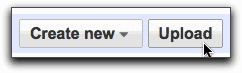
You can upload one or multiple files to Google Docs. Here's how:- Click the Upload button on the Docs list homepage.
- Click Select files to upload files from your computer. When the Browse dialog is open, select the file you'd like to upload to Google Docs. To select multiple files, press Shift or Ctrl and click all the files to upload. If you first select one file and then decide to upload more, click the Select more files link that appears after you upload the first file.
- Pick a folder to which you'd like to upload the files (this is optional), and click the Start upload button.
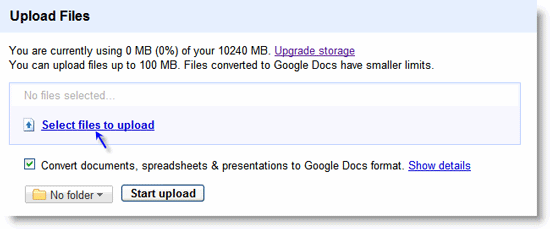
You can simply store the uploaded file in Google Docs, or convert it to Google Docs format so you can later edit it online. To store the file without converting it, make sure you deselect the option to convert the file. If you'd like to convert your document, presentation or spreadsheet to Google Docs format, you don't need to take any extra steps. The checkbox right below the Folder drop-down menu is selected by default.
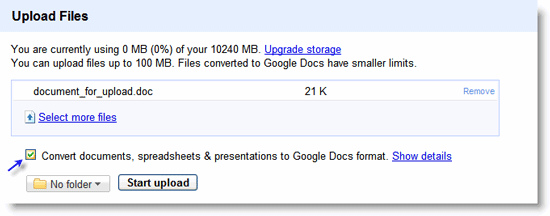
As you're uploading files, you'll see what percentage of the available space you've used. You can also access this information by clicking the Settings link at the top of the Docs list, and checking the Storage section of the page.
File types and storage
You can upload any file type to be stored in Google Docs, but you can convert only certain types of files to Google Docs format.
Uploading and converting
When uploading a file to be converted to Google Docs, please keep the following in mind:
- You can only upload and convert these file types:
- For spreadsheets: .xls, .xlsx, .ods, .csv, .tsv, .txt, .tsb
- For documents: .doc, .docx, .html, plain text (.txt), .rtf
- For presentations: .ppt, .pps
- There are some file-size limits. See the size requirements for uploading and converting.
- Some of your original formatting may not be preserved.
Uploading and storing
Files that you store but don't convert can't be larger than 1 GB each. You get 1 GB of free storage for your Google Account, and you can purchase additional storage for $0.25 per GB.
Only stored files count towards the maximum limit. If you delete a file and empty trash, you get your storage back.
Finding your stored files
After you upload a file which hasn't been converted to Google Docs format, you'll see it in all your regular views. You can also find it under Items by type > Files.
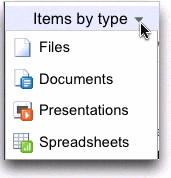
When you open one of these stored files on your Docs list, you can choose to see a preview of the file, share the file, print it, or download it to your desktop. You can also edit it on locally on your computer (for example, upload a photo, make changes using a photo editor) and then upload the new version of the file to Google Docs.
Important notes:
- You can share a stored file that hasn't been converted, but can't actually collaborate with someone on it because the file is incompatible with Google Docs format.
- Your storage quota includes plenty of bandwidth for ordinary use. If there's excessive bandwidth use, we may limit your access for a period of time.
Uploading files with the Google Docs List Data API
If you're a premier Apps customer, you can also upload multiple files to Google Docs by using the Google Docs List Data API. It allows client applications to upload documents to Google Docs and list them in the form of Google Data API ("GData") feeds. Learn more about the Google Documents List Data API.
Friday, January 22, 2010
Executing Shell Command or Command Prompt(cmd) in ASP.NET
In this article i am going to demonstrate how we can execute the underlying OS commands in ASP.NET. First of all you need to change the IIS configuration settings. Go to control Panel - > Administrative tools -> Services -> Select ISS Admin Properties -> Goto logon tab and check the "Allow service to interact with desktop" . The following code demonstrates the compiling of a C file named 'abc'. First of all you have to use the name space using System.Diagnostics.

Process mpr = new Process();
mpr.StartInfo.FileName = "Cmd.exe";
mpr.StartInfo.Arguments = @"/C tcc c:\abc.c";
mpr.StartInfo.RedirectStandardError = true;
mpr.StartInfo.RedirectStandardOutput = true;
mpr.StartInfo.UseShellExecute = false;
mpr.StartInfo.CreateNoWindow= true;
mpr.Start();
mpr.WaitForExit(1000);
Now lets have a look at the code First of all you Create an instance of Process class. Then you specify the application to be executed. In the third line you specify any arguments that is to be passed to the application. Now comes the redirection part. What does the 4th and 5th line means.When a Process is executed it typically writes its Errors and outputs to its "standard error/outout stream". By using 'RedirectStandardError/RedirectStandardOutput' we can can manipulate or suppress the error/output of a process. i.e. we can filter,modify or even write the output to both the console and a designated log file.
We were talking about executing shell commands and here is the line that says
"mpr.StartInfo.UseShellExecute = false;"
what does it mean?.
By default this property is true. And when this property is set to true we can perform any operation using Process component like starting a document,perform operations on files like printing etc.. But the problem is that we can't redirect the input, output, and error streams. This property must be set to false to redirect all the above. So what happens when we set this property to false? When set to false the process is created directly from the executable file. i.e. simply saying you can start only executables with the Process component.
The next line 'mpr.StartInfo.CreateNoWindow= true;' starts the process without creating a new window to contain it. And finally 'mpr.Start();' starts your process.
Enjoy!!!!!!!!!!!!!!!
I hope it was informative and use ful to you. If you find any errors (technical) please inform us.
NB: In the near future we are planning to migrate this blog to a website. Hope all of you will support us.

Process mpr = new Process();
mpr.StartInfo.FileName = "Cmd.exe";
mpr.StartInfo.Arguments = @"/C tcc c:\abc.c";
mpr.StartInfo.RedirectStandardError = true;
mpr.StartInfo.RedirectStandardOutput = true;
mpr.StartInfo.UseShellExecute = false;
mpr.StartInfo.CreateNoWindow= true;
mpr.Start();
mpr.WaitForExit(1000);
Now lets have a look at the code First of all you Create an instance of Process class. Then you specify the application to be executed. In the third line you specify any arguments that is to be passed to the application. Now comes the redirection part. What does the 4th and 5th line means.When a Process is executed it typically writes its Errors and outputs to its "standard error/outout stream". By using 'RedirectStandardError/RedirectStandardOutput' we can can manipulate or suppress the error/output of a process. i.e. we can filter,modify or even write the output to both the console and a designated log file.
We were talking about executing shell commands and here is the line that says
"mpr.StartInfo.UseShellExecute = false;"
what does it mean?.
By default this property is true. And when this property is set to true we can perform any operation using Process component like starting a document,perform operations on files like printing etc.. But the problem is that we can't redirect the input, output, and error streams. This property must be set to false to redirect all the above. So what happens when we set this property to false? When set to false the process is created directly from the executable file. i.e. simply saying you can start only executables with the Process component.
The next line 'mpr.StartInfo.CreateNoWindow= true;' starts the process without creating a new window to contain it. And finally 'mpr.Start();' starts your process.
Enjoy!!!!!!!!!!!!!!!
I hope it was informative and use ful to you. If you find any errors (technical) please inform us.
NB: In the near future we are planning to migrate this blog to a website. Hope all of you will support us.
Tuesday, January 5, 2010
Just launched!-What's new in Google Docs?
What's new in Google Docs?
Google still working to make Google Docs a better place, and we're listening closely to your suggestions.
Just launched!
-
Shared folders
Now you can simultaneously share a group of docs with your friends, coworkers, or family, by sharing an entire folder with them. Learn more -
Bulk upload
Upload multiple files quickly to your Docs list. Learn more -
Drawings improvements
Choose 'Insert Drawing' in any document, spreadsheet, or presentation to check out these new features.-
Snap to guides
Snap to guides helps you easily align objects with the drawings canvas and other objects. Learn more -
Polylines
Create continuous lines or even enclosed custom filled shapes composed of multiple segments. You can close shapes, fill them, and even move around points on a line by double-clicking the line. Learn more -
Draw multiple lines
It's now easier to quickly draw a sequence of related lines. Now when you finish drawing a line, arrow, or scribble, you stay in line drawing mode so you can start a new line immediately. Learn more
-
-
Translate and detect languages in Google spreadsheets
=GoogleTranslate("Hola, ¿cómo estás?","es","en") gives "Hi, how are you?" (or leave out "en" and we'll automatically choose the default language of your spreadsheet) What if you don't know the language? =DetectLanguage("Hola, ¿cómo estás?") gives "es". Learn more -
Forms: Add pages and allow navigation to a specific page within a form
Whether it's showing a different set of food questions for vegetarians and meat-etarians or building a Choose Your Own Adventure game, Google forms can take care of it all. Add page breaks to your form and let people fill out only the sections that are relevant to them. Learn more -
Print footnotes as endnotes
Choose to print your footnotes as endnotes through the 'print settings' page. Learn more -
Dictionary translation
Find the definition of a word in a given language and then translate the word and the corresponding definitions into an alternate language. Learn more -
Equation editor
Insert and edit mathematical equations and symbols in documents. Learn more -
Forms improvements
We've added a new question type (grid), support for right-to-left languages in forms, and a new color scheme for the forms summary. Also, you can now pre-populate form fields with URL parameters, and if you use Google Apps, you can create forms which require sign-in to access. Learn more -
Translate document
You can now translate an entire document into over 40 languages. Learn more -
Solve improvements
Now your target cell can include the =sum() and =sumproduct() functions. Learn more -
Export images into .xls files
Description: Now you can export images from spreadsheets when exporting in .xls format. Learn more -
Email as an attachment
From the share button you can now email your Google Spreadsheets workbook out directly as an attachment in .xls, .csv, .ods, .pdf and other popular formats. Learn more -
Snap to grid
Auto-align text, images, shapes, and tables within your slides. Learn more -
Insert images
Insert an image into your drawing and add scribbles, shapes, lines, arrows, and text boxes on top of the image. Learn more -
Tables
You can now add tables to Google Docs presentations. Learn more -
Automatically cycle through slides
You can automatically cycle through slides in presentation mode and enable time delay, autostart, and loop. Learn more -
Solve
With Solve, you can easily optimize linear equations by specifying a target cell for the result and adding constraints to help you reach your answer. Learn more
-
ROMAN function
Converting numbers into Roman numerals as easy as I, II, III. Learn more -
Forms improvements
We're adding section headers to allow you to divide your form in sections and provide more information for your respondents within the form. Learn more -
DOCX Import
You can now import Word 2007 files (.docx) into Google Docs. Learn more

What's been keeping us busy
-
New publish dialog for spreadsheets
We've improved the sharing dialog to make it easier for you to publish your spreadsheet into different formats! Using the new publishing dialog, it's easy to get an html snippet, pdf file, or published link and share it with your friends, family, or colleagues. Learn more -
Themes for forms
Add a splash of color to your surveys and questionnaires. When you create and edit a form, simply apply one of the 70 themes. Learn more
-
Sheet Protection
Spreadsheet owners can use the sheet protection feature to lock sheets so they can only be edited by collaborators the owner chooses. Learn more
-
List View and Mobile View Improvements
Now you can see your spreadsheets with all their formatting in List View and on your mobile device, this includes background/foreground colors, borders and text formatting! Learn more -
Drawings and diagrams
Create your own drawings and diagrams in Google Docs and use them in your text documents, spreadsheets and presentations. As with the rest of Google Docs, your drawings are auto-saved and you can edit them collaboratively. To get started, open a document and select Insert > Drawing. Learn more
-
Find and replace toolbar for text documents
The "Find and replace" feature in the text document Edit menu has gotten a makeover and an upgrade. Now it's a slick toolbar that sports case matching, whole word matching as well as regular expression-style matching. Learn more
-
XLSX import
You can now import supporting cell data, formatting, formulas, font style, background color, named ranges, frozen panes, and horizontal merges from Excel '07. Learn more -
Google Apps automatic identity in Forms
This feature enables the collection of the user's email address when filling out a form on a Google Apps domain. Learn more -
Form summary page
The form summary page can now be printed. Learn more -
List view in the desktop version of Google spreadsheets
You can now use list view's simple design and powerful filtering and sorting on your desktop or notebook computer. Learn more -
Google Tournament function
The GoogleTournament() function allows users to query NCAA data (including team names, records, scores, seedings, game times, etc) in a Google spreadsheet (ideal for creating automatic brackets). Learn more -
Data Validation
With two levels of validation, strict and lenient, you can now control what you and your collaborators enter into a spreadsheet. Learn more
-
List View
This 'lightweight' version of Google Spreadsheets will allow you to do quick edits when you are accessing Google Spreadsheets from select mobile devices (Android, iPhone and Nokia S60), when you are on a slow Internet connection or when there are more than 50 people accessing your spreadsheet at the same time. Learn more
-
Form Summary for your collaborators
You can now let your collaborators or form respondents see a summary of the form responses. Learn more -
Offline access in 40 languages
You can now view & edit text documents offline and view spreadsheets, forms, and presentations offline in 39 more languages. To get started, you'll first need to enable offline access for Google Docs. -
Print preview
Need to see how many pages your document is or check on how your footnotes look at the bottom of the page? Go to File > Print preview for quick look at how your document will appear when printed.
-
Forms in the templates gallery
We've added 13 spreadsheet forms to the Templates Gallery under a new document type "Forms". Browse the new forms. -
Footnotes for your school assignments
You can now annotate your documents with footnotes. Use Insert > Footnote to add a footnote into the right margin. When printed, the footnotes will appear at the bottom of the page. Learn more. -
New UI for spreadsheets!
Just like our other editors in Google Docs, spreadsheets now has an updated interface. Menus make it easy to find all of our great and unique spreadsheet editing features.
Sharing spreadsheets has also been updated. Now, it's simpler to invite people and manage access. As always, stay tuned as we continue to make this all-important action of sharing as simple as possible while giving you complete control over who sees and edits your content. Learn more -
Add a table of contents to your documents
Use the heading styles to title sections of your document (from the format menu, select Minor Heading, Sub-Heading, Heading). Then add a table of contents that will refer to those titled sections (from the Insert menu, select Table of contents). Learn more. -
"Look up word" (U.S. English only)
Select any word in your document, then go to the Tools menu to look up the word in your choice of U.S. English dictionary, thesaurus or encyclopaedia. Learn more. -
Google search integration
Again via the Tools menu, search the web for the word or words you have selected - either a regular text Google search or a Google image search. Learn more. -
New UI in presentations!
Google presentations now has a completely new interface, increasing the size of the slide during editing and visibility of thumbnails. -
Slide Zooming
Zoom in and out of your slides to see your content in detail. Learn more. -
Create forms in a jiffy
Choose New > Form to create new forms straight from Docs Home. We've also improved form editing, starting with drag-and-drop to reorder questions. Learn more. -
Autosave for forms
You don't have to lift a finger to use this new feature. Now, your form edits are automatically saved. -
Find and replace
Use Ctrl + F to search for and replace text across your entire spreadsheet. Learn more. -
Two powerful new functions
IMPORTRANGE() can reference data from any of your spreadsheets. SPLIT() cleans up text in a cell by splitting it into multiple cells at any delimiter you choose. Learn more about the importrange() function and the split() function. -
Bullet and Object Reveals in presentations
Pace your presentations with the new reveals feature. Set objects to appear in a certain order and advance through them by clicking. Set textboxes to reveal one bullet/paragraph level at a time. Learn more. -
New! Templates
Create professional documents, spreadsheets, and presentations in Google Docs. Get a jump start with one of hundreds of templates. Browse the templates gallery or learn more. Google Apps user? Learn how to use templates in your Apps account. -
Analytics tracking on published documents
You can now track how much traffic a particular published document is getting through Google Analytics. Learn more. -
"Form" tab
A new "Form" tab gives quick access to tools for creating, sending, and embedding spreadsheet forms. Learn more. -
Scientific Notation Format
Use Scientific Notation to represent bigger numbers - for example, enter 1.23E+15 when you want 1,230,000,000,000,000 or format large numbers ending in 000's explicitly in this format using the new option on the Format dropdown. Learn more. -
Expand gadgets to a full sheet
Give your gadgets more love. A whole window's worth of love. Now, you can use the "Move to own sheet" feature to give a gadget as much breathing room as it needs. (You can publish this separately, too!) Learn more. -
Engineering Functions
We've finally added functions to convert between decimal, binary, hexadecimal and octal - known as dec2bin, dec2oct, dec2hex, and, well, if you know these, you know the rest. Learn more. -
Custom colors in presentations
Can't find that specific shade of blue you need for your presentations? Now you can define colors in the color picker, creating your own palette for backgrounds, text and shapes in your slides. Learn more.


Subscribe to:
Posts (Atom)
LinkWithin
